

moveMouse and dragMouse use human-like Bézier curves by default.
Why computer use for agents
Kernel’s computer controls are built to match how computer-use models were trained — the same primitives the model emits (screenshot, click at coords, type, key, scroll, drag) map 1:1 onto the API. There’s no harness translating model output into framework calls.- Native fit. Screenshot, click, type, key, scroll, drag — the primitives the model already speaks.
- Faster screenshots. Captures bypass CDP, which removes the largest source of latency in a vision loop.
- Better against bot detection. No CDP connection means no CDP fingerprint to leak. Pairs naturally with stealth mode and residential proxies.
- Human-like input. OS-level events with Bézier-curve mouse paths, variable typing speed, and configurable mistype rate.
- Not DOM-limited. Screenshots capture the full VM, so the agent can see and interact with native dialogs, canvas elements, iframes, and PDFs — not just things you can address with a selector.
Click the mouse
Simulate mouse clicks at specific coordinates. You can select the button, click type (down, up, click), number of clicks, and optional modifier keys to hold.import Kernel from '@onkernel/sdk';
const kernel = new Kernel();
const kernelBrowser = await kernel.browsers.create();
// Basic left click at (100, 200)
await kernel.browsers.computer.clickMouse(kernelBrowser.session_id, {
x: 100,
y: 200,
});
// Double right-click while holding Shift
await kernel.browsers.computer.clickMouse(kernelBrowser.session_id, {
x: 100,
y: 200,
button: 'right',
click_type: 'click',
num_clicks: 2,
hold_keys: ['Shift'],
});
from kernel import Kernel

kernel = Kernel()
kernel_browser = kernel.browsers.create()

# Basic left click at (100, 200)
kernel.browsers.computer.click_mouse(
    id=kernel_browser.session_id,
    x=100,
    y=200,
)

# Double right-click while holding Shift
kernel.browsers.computer.click_mouse(
    id=kernel_browser.session_id,
    x=100,
    y=200,
    button="right",
    click_type="click",
    num_clicks=2,
    hold_keys=["Shift"],
)
package main

import (
	"context"

	"github.com/kernel/kernel-go-sdk"
)

func main() {
	ctx := context.Background()
	client := kernel.NewClient()
	kernelBrowser, err := client.Browsers.New(ctx, kernel.BrowserNewParams{})
	if err != nil {
		panic(err)
	}

	// Basic left click at (100, 200)
	if err := client.Browsers.Computer.ClickMouse(ctx, kernelBrowser.SessionID, kernel.BrowserComputerClickMouseParams{
		X: 100,
		Y: 200,
	}); err != nil {
		panic(err)
	}

	// Double right-click while holding Shift
	if err := client.Browsers.Computer.ClickMouse(ctx, kernelBrowser.SessionID, kernel.BrowserComputerClickMouseParams{
		X:         100,
		Y:         200,
		Button:    kernel.BrowserComputerClickMouseParamsButtonRight,
		ClickType: kernel.BrowserComputerClickMouseParamsClickTypeClick,
		NumClicks: kernel.Int(2),
		HoldKeys:  []string{"Shift"},
	}); err != nil {
		panic(err)
	}
}
# Click the mouse at coordinates (100, 200)
kernel browsers computer click-mouse <session id> --x 100 --y 200

# Double-click the right mouse button
kernel browsers computer click-mouse <session id> --x 100 --y 200 --num-clicks 2 --button right
Move the mouse
Move the cursor to specific screen coordinates. By default, the cursor follows a human-like Bezier curve path instead of teleporting instantly. You can control this withsmooth and duration_ms.
| Parameter | Type | Default | Description |
|---|---|---|---|
x | integer | — | X coordinate to move the cursor to |
y | integer | — | Y coordinate to move the cursor to |
smooth | boolean | true | Use human-like Bezier curve path instead of instant teleport |
duration_ms | integer | auto | Target duration in milliseconds for smooth movement (50–5000). Omit for automatic timing based on distance |
hold_keys | array | — | Modifier keys to hold during the move |
import Kernel from '@onkernel/sdk';

const kernel = new Kernel();
const kernelBrowser = await kernel.browsers.create();

// Human-like smooth movement (default)
await kernel.browsers.computer.moveMouse(kernelBrowser.session_id, {
  x: 500,
  y: 300,
});

// Smooth movement with custom duration
await kernel.browsers.computer.moveMouse(kernelBrowser.session_id, {
  x: 800,
  y: 600,
  smooth: true,
  duration_ms: 1500,
});

// Instant teleport (disable smooth)
await kernel.browsers.computer.moveMouse(kernelBrowser.session_id, {
  x: 100,
  y: 200,
  smooth: false,
});
from kernel import Kernel

kernel = Kernel()
kernel_browser = kernel.browsers.create()

# Human-like smooth movement (default)
kernel.browsers.computer.move_mouse(
    id=kernel_browser.session_id,
    x=500,
    y=300,
)

# Smooth movement with custom duration
kernel.browsers.computer.move_mouse(
    id=kernel_browser.session_id,
    x=800,
    y=600,
    smooth=True,
    duration_ms=1500,
)

# Instant teleport (disable smooth)
kernel.browsers.computer.move_mouse(
    id=kernel_browser.session_id,
    x=100,
    y=200,
    smooth=False,
)
package main

import (
	"context"

	"github.com/kernel/kernel-go-sdk"
)

func main() {
	ctx := context.Background()
	client := kernel.NewClient()
	kernelBrowser, err := client.Browsers.New(ctx, kernel.BrowserNewParams{})
	if err != nil {
		panic(err)
	}

	// Human-like smooth movement (default)
	if err := client.Browsers.Computer.MoveMouse(ctx, kernelBrowser.SessionID, kernel.BrowserComputerMoveMouseParams{
		X: 500,
		Y: 300,
	}); err != nil {
		panic(err)
	}

	// Smooth movement with custom duration
	if err := client.Browsers.Computer.MoveMouse(ctx, kernelBrowser.SessionID, kernel.BrowserComputerMoveMouseParams{
		X:          800,
		Y:          600,
		Smooth:     kernel.Bool(true),
		DurationMs: kernel.Int(1500),
	}); err != nil {
		panic(err)
	}

	// Instant teleport (disable smooth)
	if err := client.Browsers.Computer.MoveMouse(ctx, kernelBrowser.SessionID, kernel.BrowserComputerMoveMouseParams{
		X:      100,
		Y:      200,
		Smooth: kernel.Bool(false),
	}); err != nil {
		panic(err)
	}
}
# Smooth movement (default)
kernel browsers computer move-mouse <session id> --x 500 --y 300

# Instant teleport
kernel browsers computer move-mouse <session id> --x 500 --y 300 --smooth=false
Smooth vs instant movement
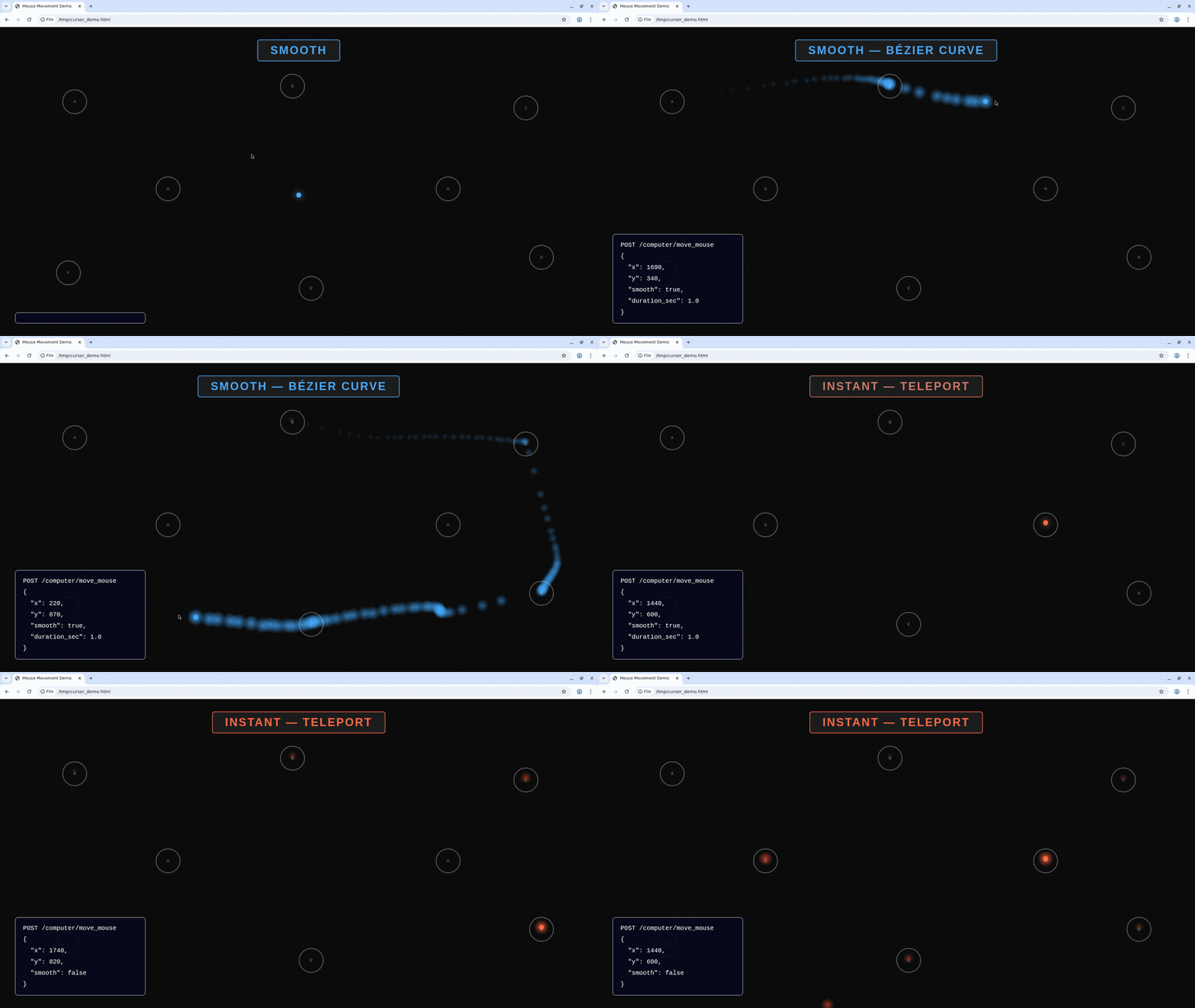
Blue = smooth Bezier path, Red = instant teleport
Take screenshots
Capture a full-screen PNG or a specific region.For WebGL and other animation-heavy pages,
captureScreenshot is noticeably faster than CDP’s Page.captureScreenshot. If you’re driving a computer-use loop off screenshots, prefer computer controls. GPU acceleration gives an additional small speedup for computer controls screenshots, but does not speed up CDP screenshots.import fs from 'fs';
import { Buffer } from 'buffer';
import Kernel from '@onkernel/sdk';
const kernel = new Kernel();
const kernelBrowser = await kernel.browsers.create();
// Full screenshot
{
const response = await kernel.browsers.computer.captureScreenshot(kernelBrowser.session_id);
const blob = await response.blob();
const buffer = Buffer.from(await blob.arrayBuffer());
fs.writeFileSync('screenshot.png', buffer);
}
// Region screenshot
{
const response = await kernel.browsers.computer.captureScreenshot(kernelBrowser.session_id, {
region: { x: 0, y: 0, width: 800, height: 600 },
});
const blob = await response.blob();
const buffer = Buffer.from(await blob.arrayBuffer());
fs.writeFileSync('region.png', buffer);
}
from kernel import Kernel

kernel = Kernel()
kernel_browser = kernel.browsers.create()

# Full screenshot
with open('screenshot.png', 'wb') as f:
    image_data = kernel.browsers.computer.capture_screenshot(id=kernel_browser.session_id)
    f.write(image_data.read())

# Region screenshot
with open('region.png', 'wb') as f:
    image_data = kernel.browsers.computer.capture_screenshot(
        id=kernel_browser.session_id,
        region={"x": 0, "y": 0, "width": 800, "height": 600},
    )
    f.write(image_data.read())
package main

import (
	"context"
	"io"
	"os"

	"github.com/kernel/kernel-go-sdk"
)

func main() {
	ctx := context.Background()
	client := kernel.NewClient()
	kernelBrowser, err := client.Browsers.New(ctx, kernel.BrowserNewParams{})
	if err != nil {
		panic(err)
	}

	// Full screenshot
	response, err := client.Browsers.Computer.CaptureScreenshot(ctx, kernelBrowser.SessionID, kernel.BrowserComputerCaptureScreenshotParams{})
	if err != nil {
		panic(err)
	}
	imageData, err := io.ReadAll(response.Body)
	closeErr := response.Body.Close()
	if err != nil {
		panic(err)
	}
	if closeErr != nil {
		panic(closeErr)
	}
	if err := os.WriteFile("screenshot.png", imageData, 0644); err != nil {
		panic(err)
	}

	// Region screenshot
	response, err = client.Browsers.Computer.CaptureScreenshot(ctx, kernelBrowser.SessionID, kernel.BrowserComputerCaptureScreenshotParams{
		Region: kernel.BrowserComputerCaptureScreenshotParamsRegion{
			X:      0,
			Y:      0,
			Width:  800,
			Height: 600,
		},
	})
	if err != nil {
		panic(err)
	}
	imageData, err = io.ReadAll(response.Body)
	closeErr = response.Body.Close()
	if err != nil {
		panic(err)
	}
	if closeErr != nil {
		panic(closeErr)
	}
	if err := os.WriteFile("region.png", imageData, 0644); err != nil {
		panic(err)
	}
}
# Take a full screenshot
kernel browsers computer screenshot <session id> --to screenshot.png

# Take a screenshot of a specific region
kernel browsers computer screenshot <session id> --to region.png --x 0 --y 0 --width 800 --height 600
Type text
Type literal text on the host. By default, typing uses human-like variable timing: word-sized chunks, natural pauses at word and sentence boundaries, and optional realistic typos corrected with backspace. Setsmooth: false for xdotool typing with a fixed per-keystroke delay (delay, in ms) or instant input when delay is 0.
| Parameter | Type | Default | Description |
|---|---|---|---|
text | string | — | Text to type |
delay | integer | 0 | Fixed delay in milliseconds between keystrokes. Only used when smooth is false; ignored when smooth is true |
smooth | boolean | true | Human-like variable keystroke timing with word-boundary pauses (default, same idea as moveMouse / dragMouse) |
typo_chance | number | 0 | Per-character typo rate from 0–0.10 (capped; 0.10 ≈ 10% per character on average), corrected with backspace. Only applies when smooth is true (silently ignored when smooth is false). Typical values are 0.02–0.05 |
import Kernel from '@onkernel/sdk';

const kernel = new Kernel();
const kernelBrowser = await kernel.browsers.create();

// Human-like smooth typing (default — omit smooth or pass true)
await kernel.browsers.computer.typeText(kernelBrowser.session_id, {
  text: 'The quick brown fox jumps over the lazy dog.',
});

// Human-like with occasional typos (3% chance per character)
await kernel.browsers.computer.typeText(kernelBrowser.session_id, {
  text: 'The quick brown fox jumps over the lazy dog.',
  typo_chance: 0.03,
});

// Instant typing (all at once, no per-key delay)
await kernel.browsers.computer.typeText(kernelBrowser.session_id, {
  text: 'Hello, World!',
  smooth: false,
});

// Fixed delay between keystrokes (smooth off)
await kernel.browsers.computer.typeText(kernelBrowser.session_id, {
  text: 'Slow typing...',
  smooth: false,
  delay: 100,
});
from kernel import Kernel

kernel = Kernel()
kernel_browser = kernel.browsers.create()

# Human-like smooth typing (default — omit smooth or pass True)
kernel.browsers.computer.type_text(
    id=kernel_browser.session_id,
    text="The quick brown fox jumps over the lazy dog.",
)

# Human-like with occasional typos (3% chance per character)
kernel.browsers.computer.type_text(
    id=kernel_browser.session_id,
    text="The quick brown fox jumps over the lazy dog.",
    typo_chance=0.03,
)

# Instant typing (all at once, no per-key delay)
kernel.browsers.computer.type_text(
    id=kernel_browser.session_id,
    text="Hello, World!",
    smooth=False,
)

# Fixed delay between keystrokes (smooth off)
kernel.browsers.computer.type_text(
    id=kernel_browser.session_id,
    text="Slow typing...",
    smooth=False,
    delay=100,
)
package main

import (
	"context"

	"github.com/kernel/kernel-go-sdk"
)

func main() {
	ctx := context.Background()
	client := kernel.NewClient()
	kernelBrowser, err := client.Browsers.New(ctx, kernel.BrowserNewParams{})
	if err != nil {
		panic(err)
	}

	// Type literal text
	if err := client.Browsers.Computer.TypeText(ctx, kernelBrowser.SessionID, kernel.BrowserComputerTypeTextParams{
		Text: "The quick brown fox jumps over the lazy dog.",
	}); err != nil {
		panic(err)
	}

	// Fixed delay between keystrokes
	if err := client.Browsers.Computer.TypeText(ctx, kernelBrowser.SessionID, kernel.BrowserComputerTypeTextParams{
		Text:  "Slow typing...",
		Delay: kernel.Int(100),
	}); err != nil {
		panic(err)
	}
}
# Human-like smooth typing (default)
kernel browsers computer type <session id> --text "The quick brown fox"

# Human-like with occasional typos
kernel browsers computer type <session id> --text "The quick brown fox" --typo-chance 0.03

# Instant typing (all at once)
kernel browsers computer type <session id> --text "Hello, World!" --smooth=false

# Fixed delay between keystrokes (smooth off)
kernel browsers computer type <session id> --text "Slow typing..." --smooth=false --delay 100
Smooth vs instant typing
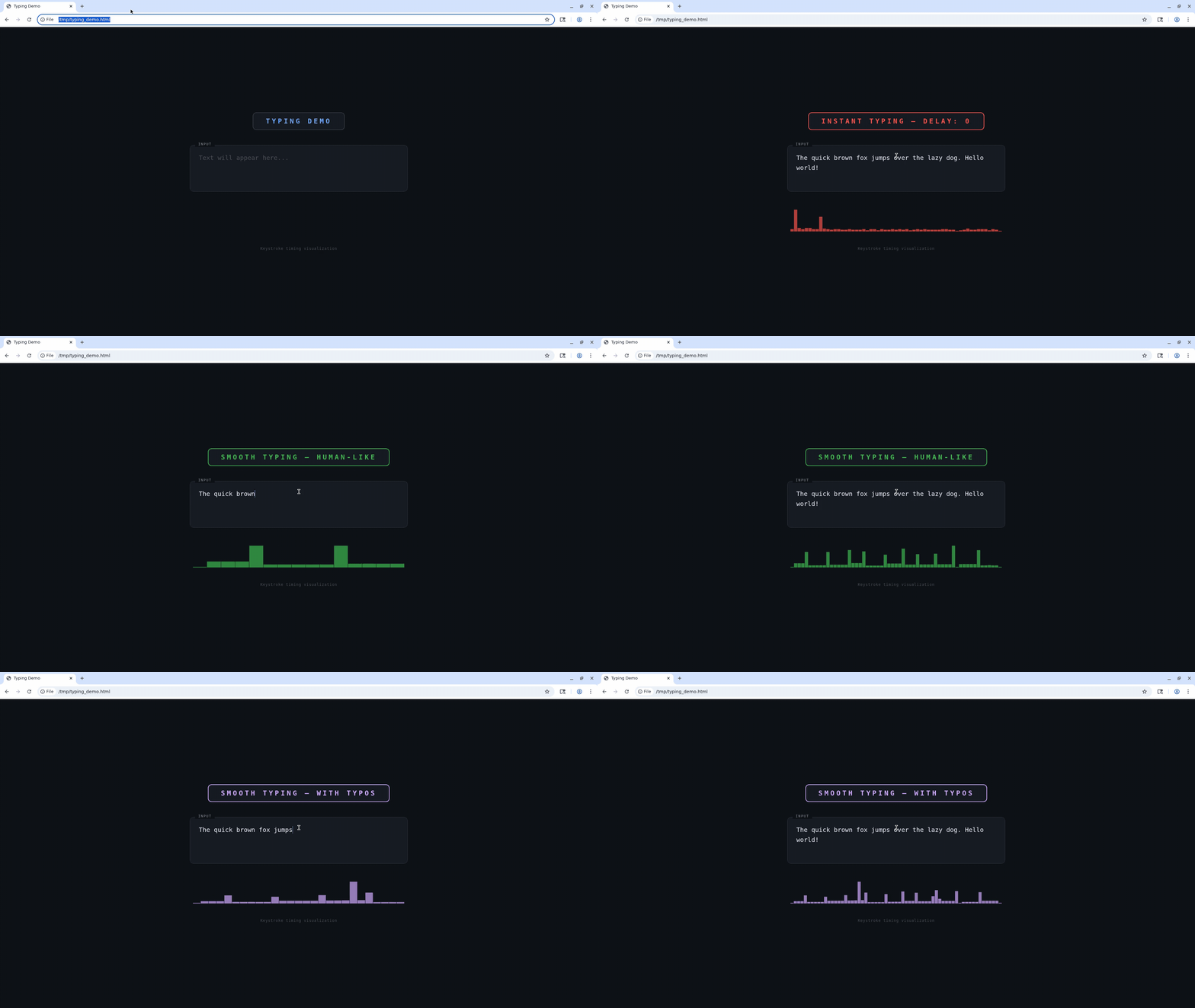
Instant typing (all at once) vs smooth human-like typing with variable delays and typo correction
Press keys
Press one or more key symbols (including combinations like “Ctrl+t” or “Ctrl+Shift+Tab”). Optionally hold modifiers and/or set a duration to hold keys down.import Kernel from '@onkernel/sdk';
const kernel = new Kernel();
const kernelBrowser = await kernel.browsers.create();
// Tap a key combination
await kernel.browsers.computer.pressKey(kernelBrowser.session_id, {
keys: ['Ctrl+t'],
});
// Hold keys for 250ms while also holding Alt
await kernel.browsers.computer.pressKey(kernelBrowser.session_id, {
keys: ['Ctrl+Shift+Tab'],
duration: 250,
hold_keys: ['Alt'],
});
from kernel import Kernel

kernel = Kernel()
kernel_browser = kernel.browsers.create()

# Tap a key combination
kernel.browsers.computer.press_key(
    id=kernel_browser.session_id,
    keys=["Ctrl+t"],
)

# Hold keys for 250ms while also holding Alt
kernel.browsers.computer.press_key(
    id=kernel_browser.session_id,
    keys=["Ctrl+Shift+Tab"],
    duration=250,
    hold_keys=["Alt"],
)
package main

import (
	"context"

	"github.com/kernel/kernel-go-sdk"
)

func main() {
	ctx := context.Background()
	client := kernel.NewClient()
	kernelBrowser, err := client.Browsers.New(ctx, kernel.BrowserNewParams{})
	if err != nil {
		panic(err)
	}

	// Tap a key combination
	if err := client.Browsers.Computer.PressKey(ctx, kernelBrowser.SessionID, kernel.BrowserComputerPressKeyParams{
		Keys: []string{"Ctrl+t"},
	}); err != nil {
		panic(err)
	}

	// Hold keys for 250ms while also holding Alt
	if err := client.Browsers.Computer.PressKey(ctx, kernelBrowser.SessionID, kernel.BrowserComputerPressKeyParams{
		Keys:     []string{"Ctrl+Shift+Tab"},
		Duration: kernel.Int(250),
		HoldKeys: []string{"Alt"},
	}); err != nil {
		panic(err)
	}
}
# Press one or more keys (repeatable --key)
kernel browsers computer press-key <session id> --key Ctrl+t

# Hold for a duration and add optional modifiers
kernel browsers computer press-key <session id> --key Ctrl+Shift+Tab --duration 250 --hold-key Alt
Scroll
Scroll the mouse wheel at a specific position. Positivedelta_y scrolls down; negative scrolls up. Positive delta_x scrolls right; negative scrolls left. Scroll amounts refer to “wheel units.”
import Kernel from '@onkernel/sdk';

const kernel = new Kernel();
const kernelBrowser = await kernel.browsers.create();

await kernel.browsers.computer.scroll(kernelBrowser.session_id, {
  x: 300,
  y: 400,
  delta_x: 0,
  delta_y: 120,
});
from kernel import Kernel

kernel = Kernel()
kernel_browser = kernel.browsers.create()

kernel.browsers.computer.scroll(
    id=kernel_browser.session_id,
    x=300,
    y=400,
    delta_x=0,
    delta_y=120,
)
package main

import (
	"context"

	"github.com/kernel/kernel-go-sdk"
)

func main() {
	ctx := context.Background()
	client := kernel.NewClient()
	kernelBrowser, err := client.Browsers.New(ctx, kernel.BrowserNewParams{})
	if err != nil {
		panic(err)
	}

	if err := client.Browsers.Computer.Scroll(ctx, kernelBrowser.SessionID, kernel.BrowserComputerScrollParams{
		X:      300,
		Y:      400,
		DeltaX: kernel.Int(0),
		DeltaY: kernel.Int(120),
	}); err != nil {
		panic(err)
	}
}
# Scroll at a position
kernel browsers computer scroll <session id> --x 300 --y 400 --delta-y 120
Drag the mouse
Drag by pressing a button, moving along a path of points, then releasing. By default, drag movement uses human-like Bezier curves between waypoints. Setsmooth: false to use linear interpolation with steps_per_segment and step_delay_ms instead.
| Parameter | Type | Default | Description |
|---|---|---|---|
path | array | — | Ordered list of [x, y] coordinate pairs to move through (minimum 2 points) |
button | string | left | Mouse button: left, middle, or right |
smooth | boolean | true | Use human-like Bezier curves between waypoints. When true, steps_per_segment and step_delay_ms are ignored |
duration_ms | integer | auto | Target duration in milliseconds for the entire drag when smooth=true (50–10000). Omit for automatic timing based on total path length |
delay | integer | 0 | Delay in milliseconds between button down and starting to move |
steps_per_segment | integer | 10 | Number of interpolation steps per path segment (only when smooth=false) |
step_delay_ms | integer | 50 | Delay in milliseconds between steps (only when smooth=false) |
hold_keys | array | — | Modifier keys to hold during the drag |
Smooth vs linear drag
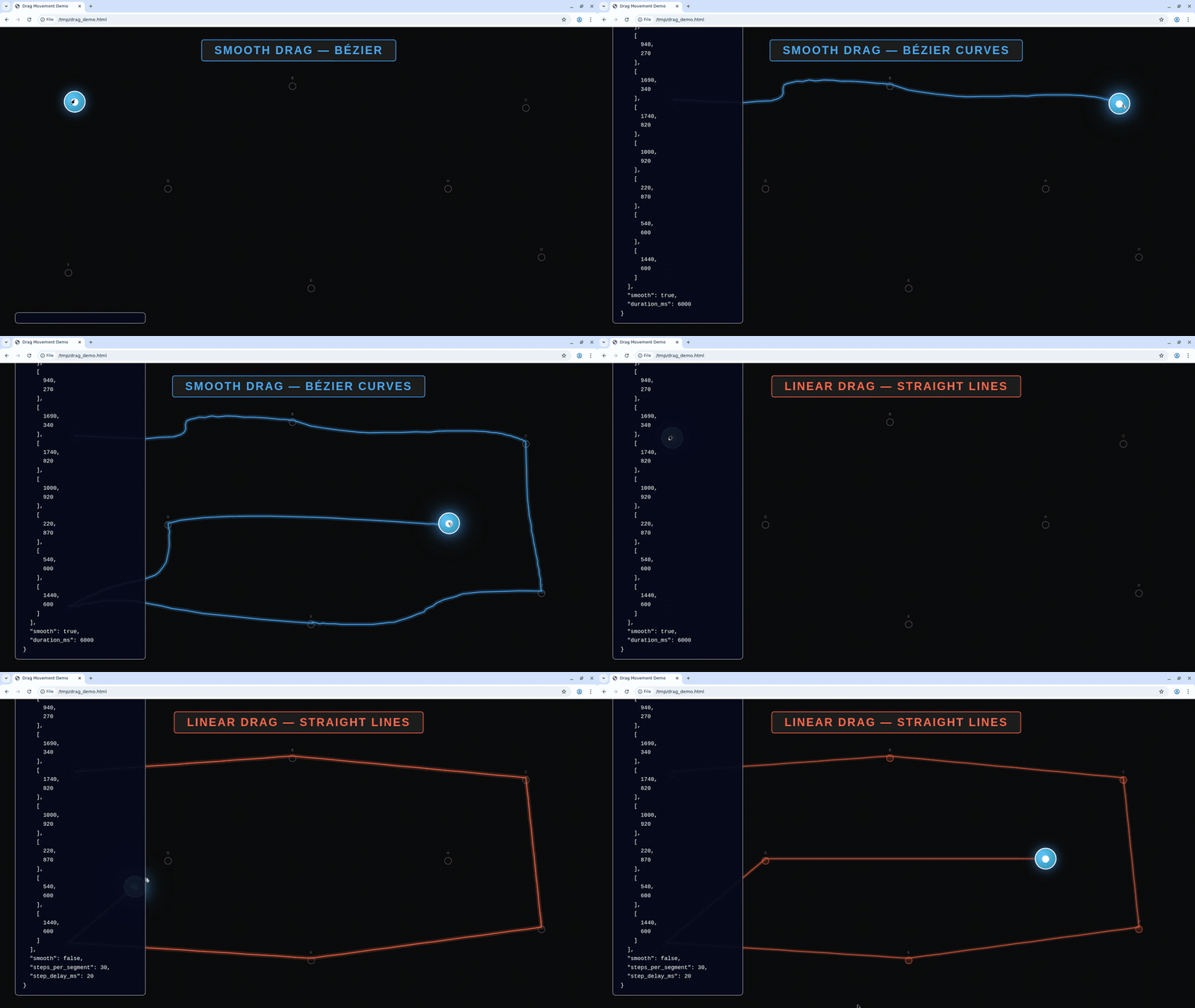
Blue = smooth Bezier curves, Red = linear interpolation
import Kernel from '@onkernel/sdk';

const kernel = new Kernel();
const kernelBrowser = await kernel.browsers.create();

// Human-like smooth drag (default)
await kernel.browsers.computer.dragMouse(kernelBrowser.session_id, {
  path: [
    [100, 200],
    [400, 350],
    [700, 200],
  ],
});

// Smooth drag with custom duration
await kernel.browsers.computer.dragMouse(kernelBrowser.session_id, {
  path: [
    [100, 200],
    [400, 350],
    [700, 200],
  ],
  smooth: true,
  duration_ms: 2000,
});

// Linear interpolation drag (legacy behavior)
await kernel.browsers.computer.dragMouse(kernelBrowser.session_id, {
  path: [
    [100, 200],
    [400, 350],
    [700, 200],
  ],
  smooth: false,
  steps_per_segment: 10,
  step_delay_ms: 50,
});
from kernel import Kernel

kernel = Kernel()
kernel_browser = kernel.browsers.create()

# Human-like smooth drag (default)
kernel.browsers.computer.drag_mouse(
    id=kernel_browser.session_id,
    path=[[100, 200], [400, 350], [700, 200]],
)

# Smooth drag with custom duration
kernel.browsers.computer.drag_mouse(
    id=kernel_browser.session_id,
    path=[[100, 200], [400, 350], [700, 200]],
    smooth=True,
    duration_ms=2000,
)

# Linear interpolation drag (legacy behavior)
kernel.browsers.computer.drag_mouse(
    id=kernel_browser.session_id,
    path=[[100, 200], [400, 350], [700, 200]],
    smooth=False,
    steps_per_segment=10,
    step_delay_ms=50,
)
package main

import (
	"context"

	"github.com/kernel/kernel-go-sdk"
)

func main() {
	ctx := context.Background()
	client := kernel.NewClient()
	kernelBrowser, err := client.Browsers.New(ctx, kernel.BrowserNewParams{})
	if err != nil {
		panic(err)
	}

	// Human-like smooth drag (default)
	if err := client.Browsers.Computer.DragMouse(ctx, kernelBrowser.SessionID, kernel.BrowserComputerDragMouseParams{
		Path: [][]int64{
			{100, 200},
			{400, 350},
			{700, 200},
		},
	}); err != nil {
		panic(err)
	}

	// Smooth drag with custom duration
	if err := client.Browsers.Computer.DragMouse(ctx, kernelBrowser.SessionID, kernel.BrowserComputerDragMouseParams{
		Path: [][]int64{
			{100, 200},
			{400, 350},
			{700, 200},
		},
		Smooth:     kernel.Bool(true),
		DurationMs: kernel.Int(2000),
	}); err != nil {
		panic(err)
	}

	// Linear interpolation drag (legacy behavior)
	if err := client.Browsers.Computer.DragMouse(ctx, kernelBrowser.SessionID, kernel.BrowserComputerDragMouseParams{
		Path: [][]int64{
			{100, 200},
			{400, 350},
			{700, 200},
		},
		Smooth:          kernel.Bool(false),
		StepsPerSegment: kernel.Int(10),
		StepDelayMs:     kernel.Int(50),
	}); err != nil {
		panic(err)
	}
}
# Smooth drag (default)
kernel browsers computer drag-mouse <session id> \
  --point 100,200 \
  --point 400,350 \
  --point 700,200

# Linear interpolation drag
kernel browsers computer drag-mouse <session id> \
  --point 100,200 \
  --point 400,350 \
  --point 700,200 \
  --smooth=false \
  --steps-per-segment 10 \
  --step-delay-ms 50